Request a Signature
This guide provides the steps you should follow to request a signature via Clixsign using the Forth API. To generate a document and send it to Clixsign, you must first have the following information available:
- The document template ID you wish to generate and send through Clixsign
- The contact ID you wish to originate the Clixsign request for
- The details of the various individuals or entities that are signers on the agreement
To successfully send a Clixsign document, complete the following steps.
1
Determine Document Template / Package To Be Sent For Signature
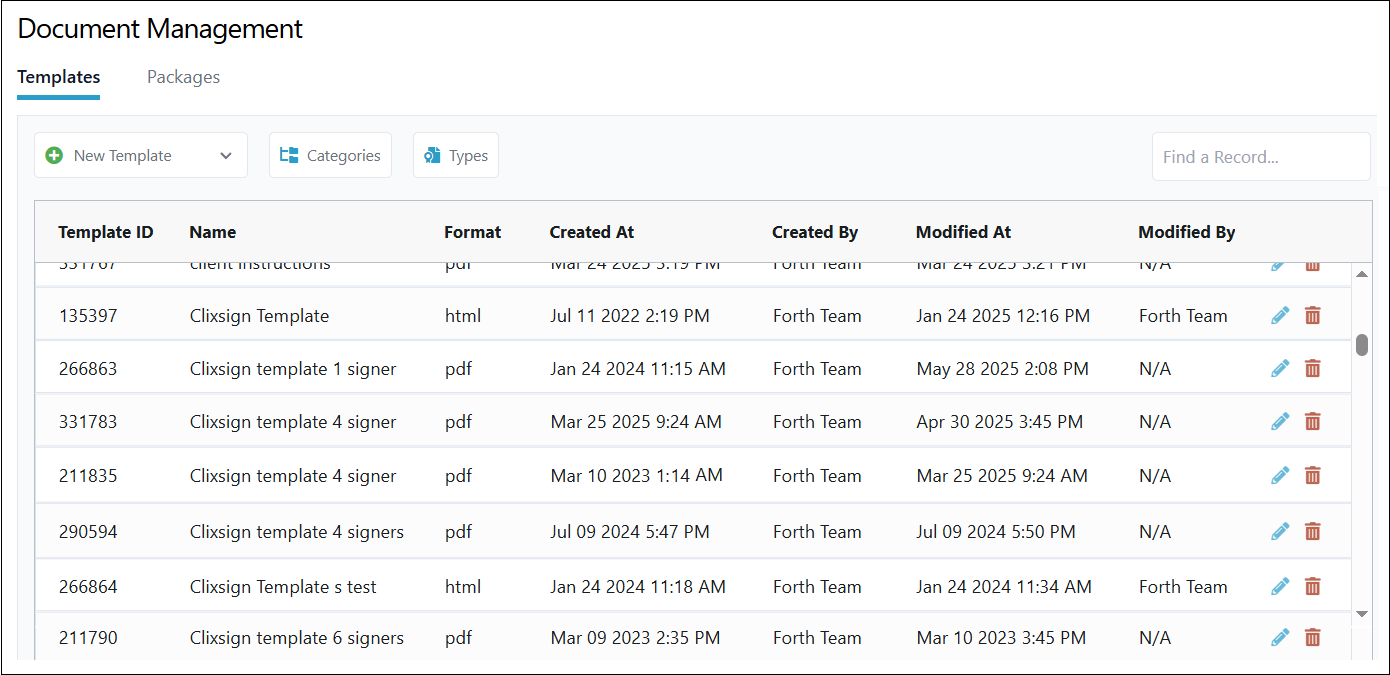
Your FORTH CRM account will contain various documents and document packages stored within the ‘Docs’ tab of your system. Navigate to this tab to see what documents you have available for generation, or retrieve them programatically via a GET request to the list-all-documents endpoint. You can retrieve all packages similarly through the documents tab UI or via the endpoint list-document-packages. You will need the corresponding ‘Template ID’ or ‘Package ID’ in the following step.
2
Generate Document Template/Package to Prepare For Signature
Next, use the generate-a-document endpoint or the generate-a-document-package endpoint, and reference the corresponding document template ID or package ID you wish to generate for a contact record. In the response, you will receive a doc_id that needs to be referenced in the following request.
 {
    "response": {
        "html": null,
        "doc_id": 37256536,
        "doc_data": {
            "signers": {
                "1": {
                    "signer_type": "Signature here",
                    "default": "contact",
                    "signatures": [
                        {
                            "type": "SIGNATURE",
                            "x": "78.138",
                            "y": "288.008",
                            "width": "110.959",
                            "height": "27.740",
                            "required": true,
                            "page": 0
                        },
                        {
                            "type": "INITIAL",
                            "x": "452.664",
                            "y": "325.468",
                            "width": "37.500",
                            "height": "18.750",
                            "required": true,
                            "page": 0
                        },
                        {
                            "type": "TEXTINPUT",
                            "x": "215.328",
                            "y": "335.734",
                            "width": "79.109",
                            "height": "10.788",
                            "required": true,
                            "page": 0,
                            "replaceable": {
                                "text": "Text",
                                "font": "droid_sans",
                                "size": 10,
                                "color": "#000",
                                "alignment": "left",
                                "bold": false,
                                "italic": false,
                                "wrap": true,
                                "fill": false
                            }
                        }
                    ]
                },
                "2": {
                    "signer_type": "",
                    "default": "manual",
                    "signatures": [
                        {
                            "type": "SIGNATURE",
                            "x": "226.709",
                            "y": "293.602",
                            "width": "52.397",
                            "height": "13.099",
                            "required": true,
                            "page": 0
                        }
                    ]
                },
                "3": {
                    "signer_type": "",
                    "default": "manual",
                    "signatures": [
                        {
                            "type": "SIGNATURE",
                            "x": "314.640",
                            "y": "290.496",
                            "width": "52.397",
                            "height": "13.099",
                            "required": false,
                            "page": 0
                        }
                    ]
                },
                "4": {
                    "signer_type": "",
                    "default": "manual",
                    "signatures": [
                        {
                            "type": "SIGNATURE",
                            "x": "405.155",
                            "y": "285.841",
                            "width": "52.397",
                            "height": "13.099",
                            "required": false,
                            "page": 0
                        }
                    ]
                }
            },
            "pages": [
                {
                    "width": 612,
                    "height": 792
                },
                {
                    "width": 612,
                    "height": 792
                }
            ],
            "filename": ""
        },
        "title": "Clixsign template 4 signer"
    },
    "status": {
        "code": 200
    }
}
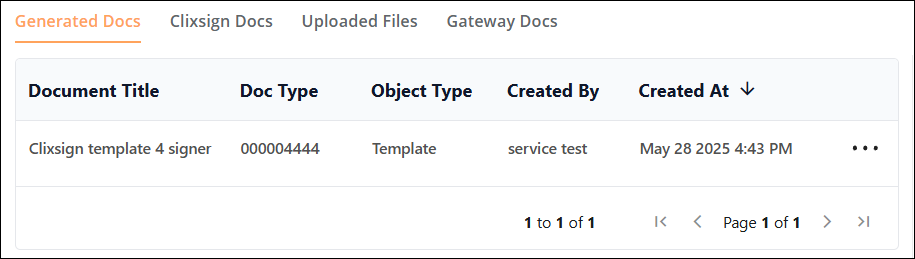
Additionally, you should see a corresponding history event and document generated on the contact record in the CRM.

3
Send via Clixsign for Signature
The doc_id value from the previous request will now be used to send a document through Clixsign via the send-clixsign-document request with the ‘gen_id’ field in the request body.
Additionally, define the values of the signer as if you were generating the document for the contact record within the FORTH UI, including details such as the signer's name, email, and phone numbers, and whether they are receiving this document via email or SMS message.
NOTE: If ‘enforce_order’ is set to ‘true’, then each signer must complete the document before sending to the next signer in numerical order defined by the request.
 {
  "gen_id": 37256536,
  "request_settings": {
    "enforce_order": true,
    "expiration_date": "2025-07-18"
  },
  "notifications": {
    "email": {
      "message": "Thisis your document to sign"
    }
  },
  "signers": [
    {
      "signer_number": 1,
      "signer_type": "Contact",
      "signer_name": "Bob Test",
      "signer_email": "test@test.net",
      "signer_phone": 16665554444,
      "verbal_auth": true,
      "signer_notifications": {
        "email": true,
        "sms": false
      }
    }
  ]
}
Once all signers are defined and the request is sent, the Clixsign documents will be sent to their respective recipients via their specified delivery methods.
Once all documents have been signed, you should see the document status updated to ‘Completed’ within the contact record in the FORTH CRM.
What made this section unhelpful for you?


On this page
- Request a Signature